
On this page
Analytics Stream
Description
Analytics Stream extension for Magento 2 provides analytical tracking with 3 popular services:
- Facebook Conversions API (also known as Meta Conversion API);
- Google Analytics 4;
- Matomo Analytics.
Providing sync with Conversion API, Google Analytics 4, and Matomo Analytics is important because these systems are some of the most popular and widely used analytics tools available today.
Google Analytics 4, in particular, is a popular choice for many businesses because it offers a range of powerful features such as cross-device tracking and advanced reporting capabilities. Additionally, it's the next generation of Google Analytics and is designed to be more privacy-focused than its' predecessor, Google Analytics Universal.
Matomo Analytics is also a popular choice for businesses that value data privacy and control, as it's an open-source analytics platform that offers powerful tracking capabilities while allowing users to keep their data on their own servers.
Finally, the Meta Conversion API is a powerful tool that allows businesses to track a range of events and conversions on their website, such as form submissions, clicks, and more. It's particularly useful for businesses that want to track complex events that may not be easily tracked using other analytics tools.
Overall, by providing sync with these systems, the extension is offering businesses a comprehensive and flexible solution for tracking and optimizing their website's performance,
Our module is designed to make your life easier by offloading event tracking from the client-side to the server-side, making you less prone to customer privacy issues.
Additionally, our extension is compatible with any Magento theme, including Hyva, using native javascript with no required dependencies.
Using the module will eliminate slow website performance caused by the need to load multiple javascript libraries for analytics tracking. With our extension, you can optimize your site's performance without sacrificing valuable tracking data.
Our solution provides the ultimate convenience by offering a single module for tracking on multiple platforms.
Meta and G4 analytics configuration supports two operating modes: with front-end integration and without. This is because there are sometimes limitations when using purely server side tracking (for example, GA4 does not detect users location).
Matomo only supports server-side mode since there is no benefit in using client-side library over server-side.
Note
All Aitoc extensions can be customised to fit particular business needs. If you have questions about any customization, please drop a message at [email protected]
Compatibility
Analytics Stream module is compatible with the following Magento platforms:
| Community Edition (Open Source) | Enterprise Edition (Commerce) | Cloud Edition |
|---|---|---|
| 2.4.* | 2.4.* | 2.4.* |
Installation
Installing module using zip file
- Unzip and paste the extension file into your root Magento folder.
- Connect to your server by SSH.
- Go to your Magento root folder.
- To install the extension, perform this command:
php bin/magento setup:upgrade
php bin/magento setup:di:compile
php bin/magento setup:static-content:deploy
Composer installation
If you haven't installed any Aitoc module before, in that case first you will need to add your Aitoc composer repository. Please go through the document to see how you can add composer repository.
To install the module, you will need to run following commands:
composer require aitoc/module-analytics-stream
php bin/magento setup:upgrade
php bin/magento setup:di:compile
php bin/magento setup:static-content:deploy -f- To switch the extension on/off, perform these commands:
php bin/magento module:enable Aitoc_AnalyticsStream
php bin/magento module:disable Aitoc_AnalyticsStream- To update the module, use below command:
composer update aitoc/module-analytics-streamModule Configuration
To access the module configuration, go to Admin → Stores → Configuration → AITOC EXTENSIONS → Analytics Stream.
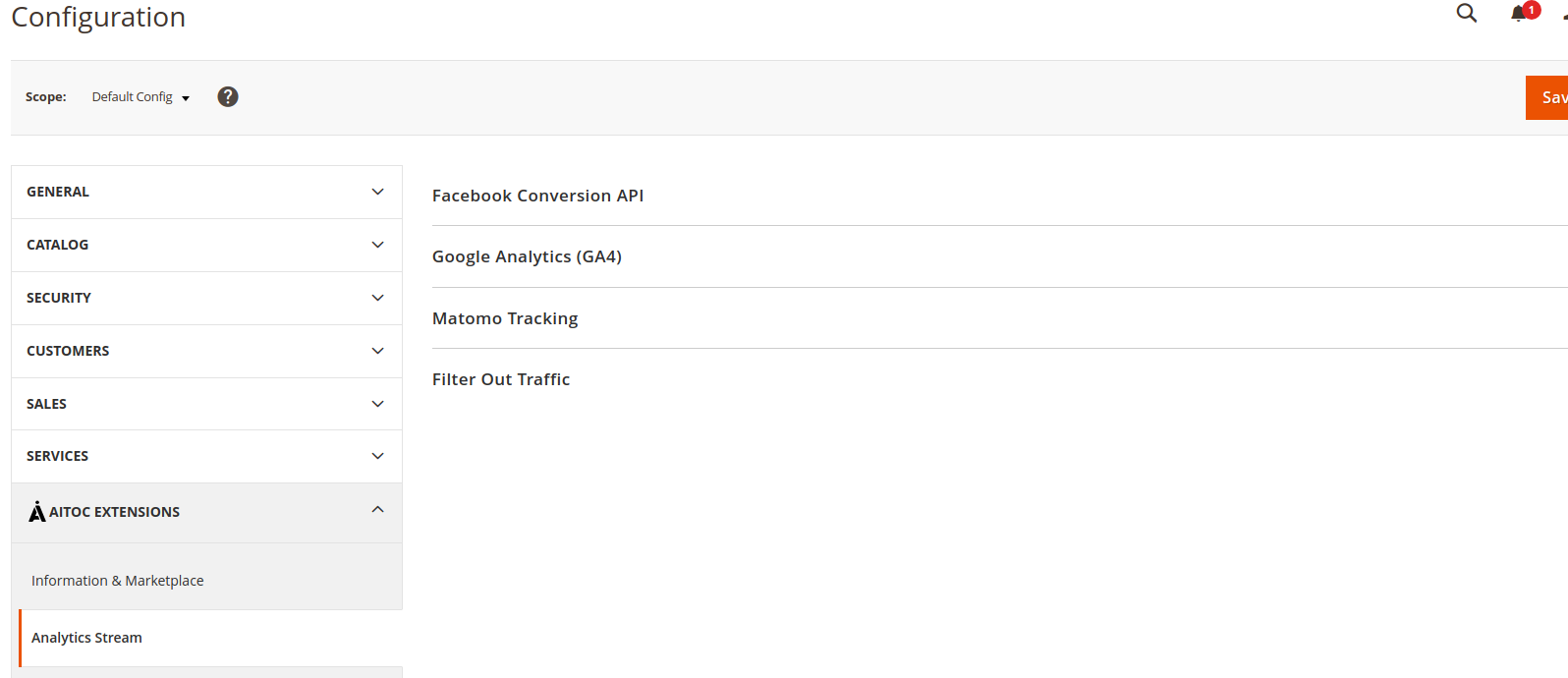
The workspace consists of 4 tabs.
Facebook Conversion API
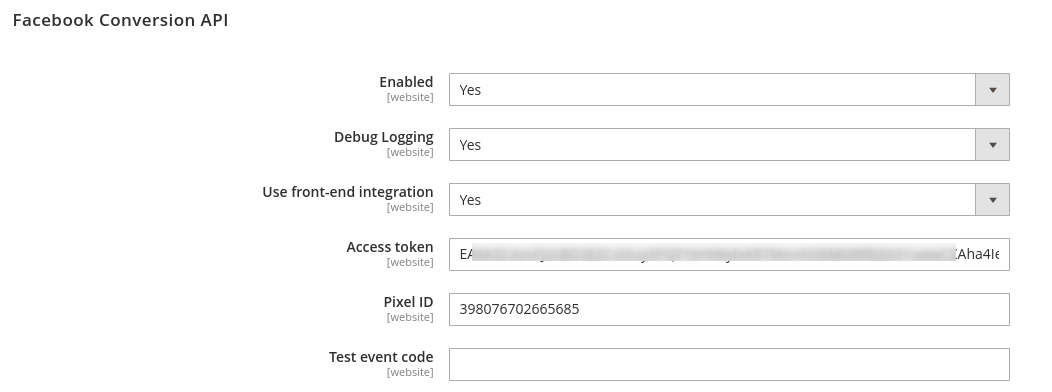
First of all, to sync with this analytics system you need to Enable it from here. Note that all these settings can be managed on the website level and different websites (within one Magento installation) may have different configurations.
As mentioned beforehand, the extension can be set up using two different operating modes: with front-end integration and without it:
-
Front-end integration mode (Use front-end integration is set to Yes). When customer comes to a page first time and their session does not contain any tracking information, the module will load client side analytics javascript and then pass the data that was generated to backend. This data contains
fbpelement and is generally referred to as “Browser ID”. Note that JS libraries are loaded only once, during the first page load. After the parameters are received by the backend, subsequent requests already know ID parameters and will automatically use them from session. -
Server-side mode (Use front-end integration is set to No). In this mode no client-side javascript is loaded, events are tracked purely on the server-side. The initial unique IDs for the clients are generated by the extension and stored in the session. The caveat of this approach is that, e.g., GA4 does not track geographical information via server-side API. The positive side, however, is that client browser will never load any analytics scripts and will not store cookies related to it either.
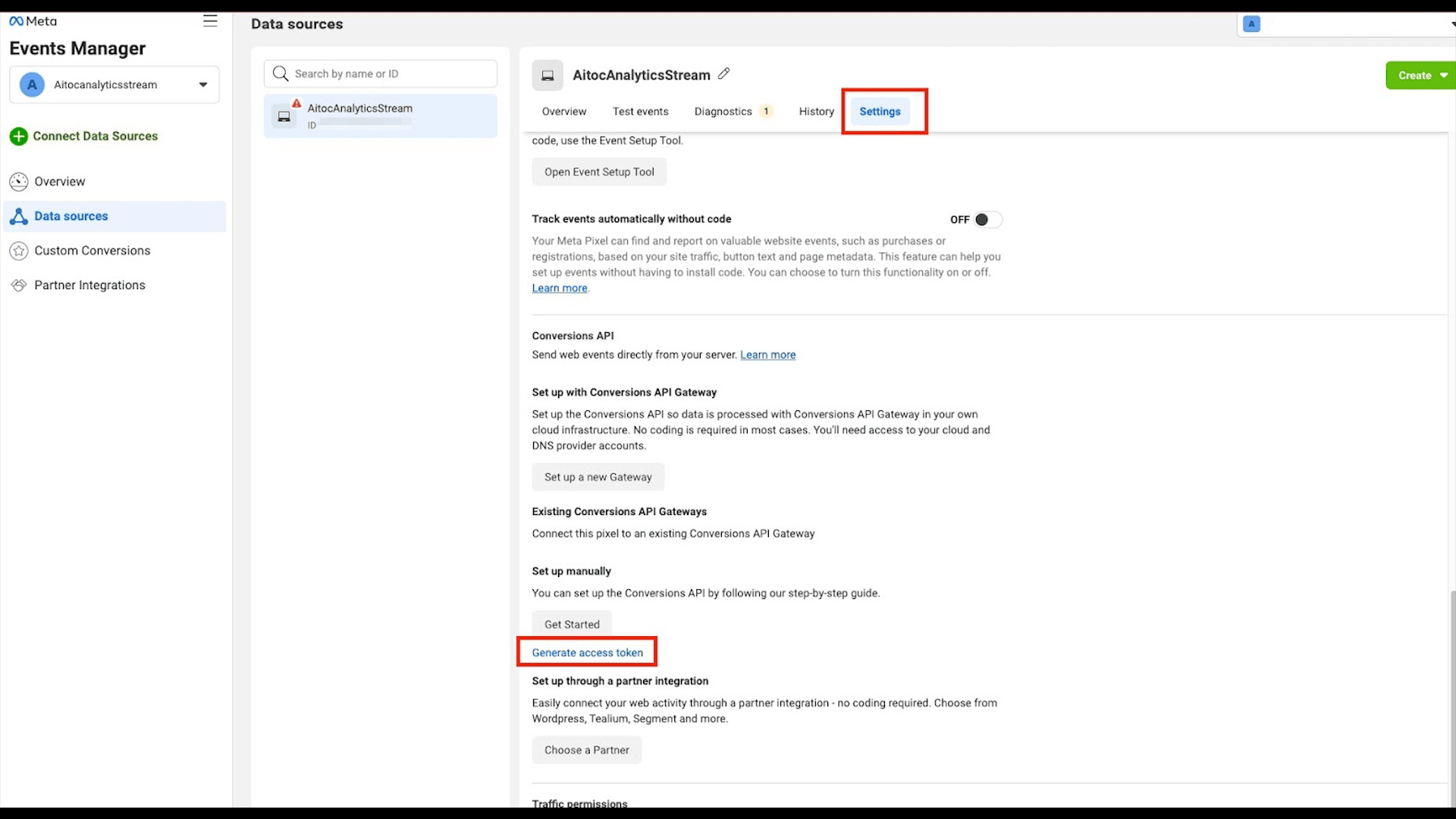
Access Token is needed to make direct calls to the API. In order to generate this, please open the Events Manager and go to Settings on your relevant tracking account. To create the new token, click the Generate access token link.
Pixel ID is your normal identifier that you get from setting up a tracking account with Meta. Refer to official guidelines in order to set this up.
Test event code is the developers configuration and in most cases please leave it blank (unless you know what to do).
Google Analytics (GA4)
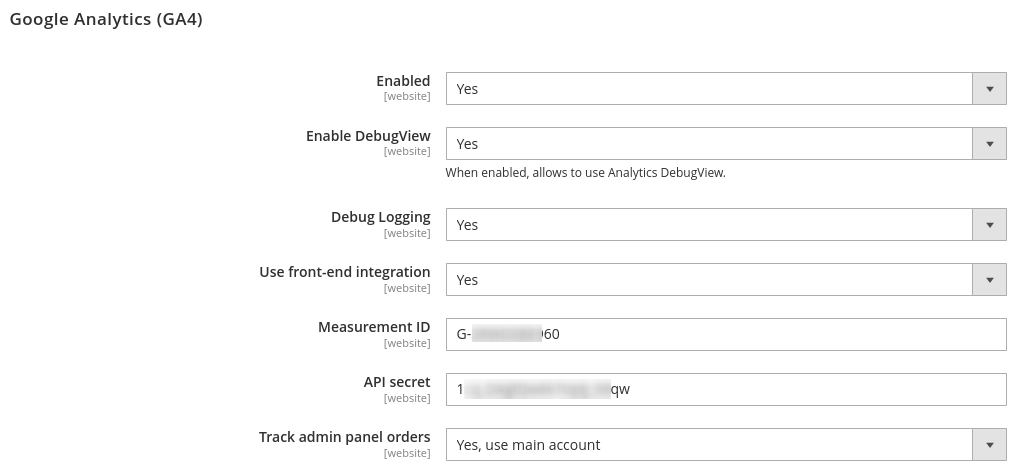
First of all, to sync with this analytics system you need to Enable it from here. Note that all these settings can be managed on the website level and different websites (within one Magento installation) may have different configurations.
As mentioned beforehand, the extension can be set up using two different operating modes: with front-end integration and without it:
-
Front-end integration mode (Use front-end integration is set to Yes). When customer comes to a page first time and their session does not contain any tracking information, the module will load client side analytics javascript and then pass the data that was generated to backend. This data contains
client_idelement and is generally referred to as “Browser ID”. Note that JS libraries are loaded only once, during the first page load. After the parameters are received by the backend, subsequent requests already know ID parameters and will automatically use them from session. -
Server-side mode (Use front-end integration is set to No). In this mode no client-side javascript is loaded, events are tracked purely on the server-side. The initial unique IDs for the clients are generated by the extension and stored in the session. The caveat of this approach is that, e.g., GA4 does not track geographical information via server-side API. The positive side, however, is that client browser will never load any analytics scripts and will not store cookies related to it either.
Measurement ID is an identifier (e.g., G-12345) for a web data stream, to get this create a Google Analytics account, following the official guide.
API Secret is needed to make direct calls to the API, to get this follow the official guide.
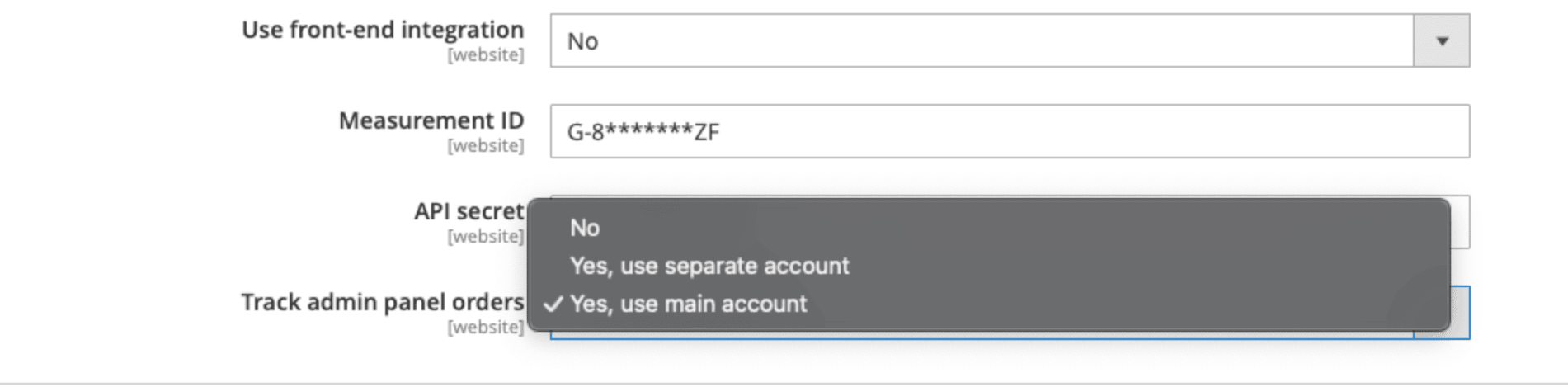
Our extension allows to Track admin panel orders. This setting has three options:
-
If you do not need this feature, select No.
-
If you wish to incorporate the website orders into same GA4 account, you need to select Yes, use main account
-
If you need to transfer this information to the separate GA4 account, select Yes, use separate account. In this case, the new settings will show up:
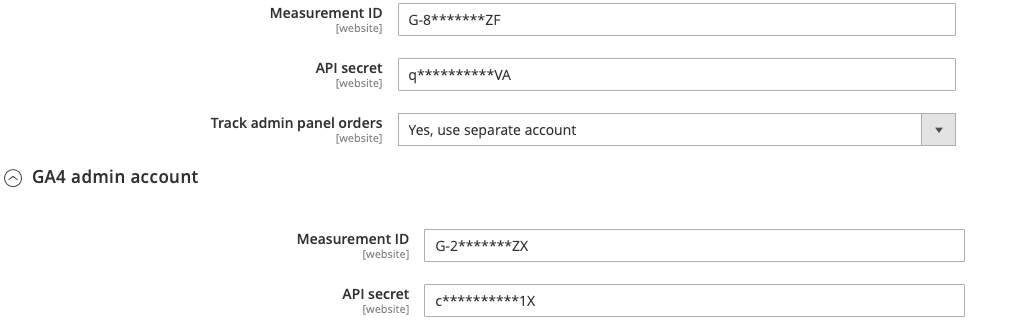
You will be able to provide different Measurement ID and API Secret.
Matomo Tracking
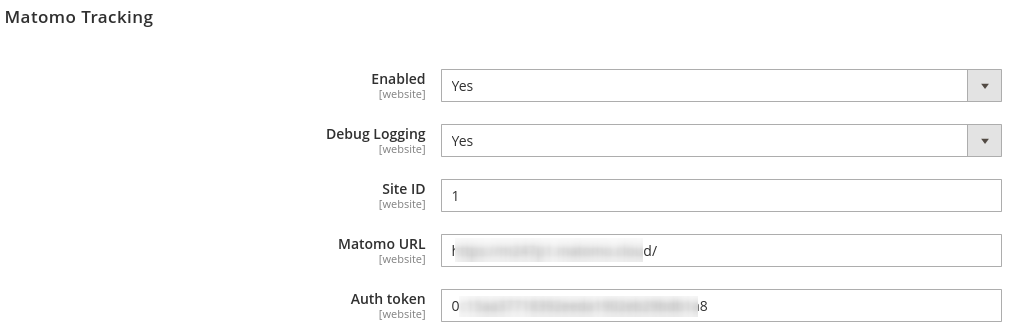
First of all, to sync with this analytics system you need to Enable it from here. Note that all these settings can be managed on the website level and different websites (within one Magento installation) may have different configurations.
Site ID is a numeric value representing the Website ID, this can be found in Matomo Dashboard once you set up you first site (usually the value is 1 when only one website is registered for the account).
Tracker URL is the same URL as your Matomo dashboard, usually it’s https://[something].matomo.cloud.
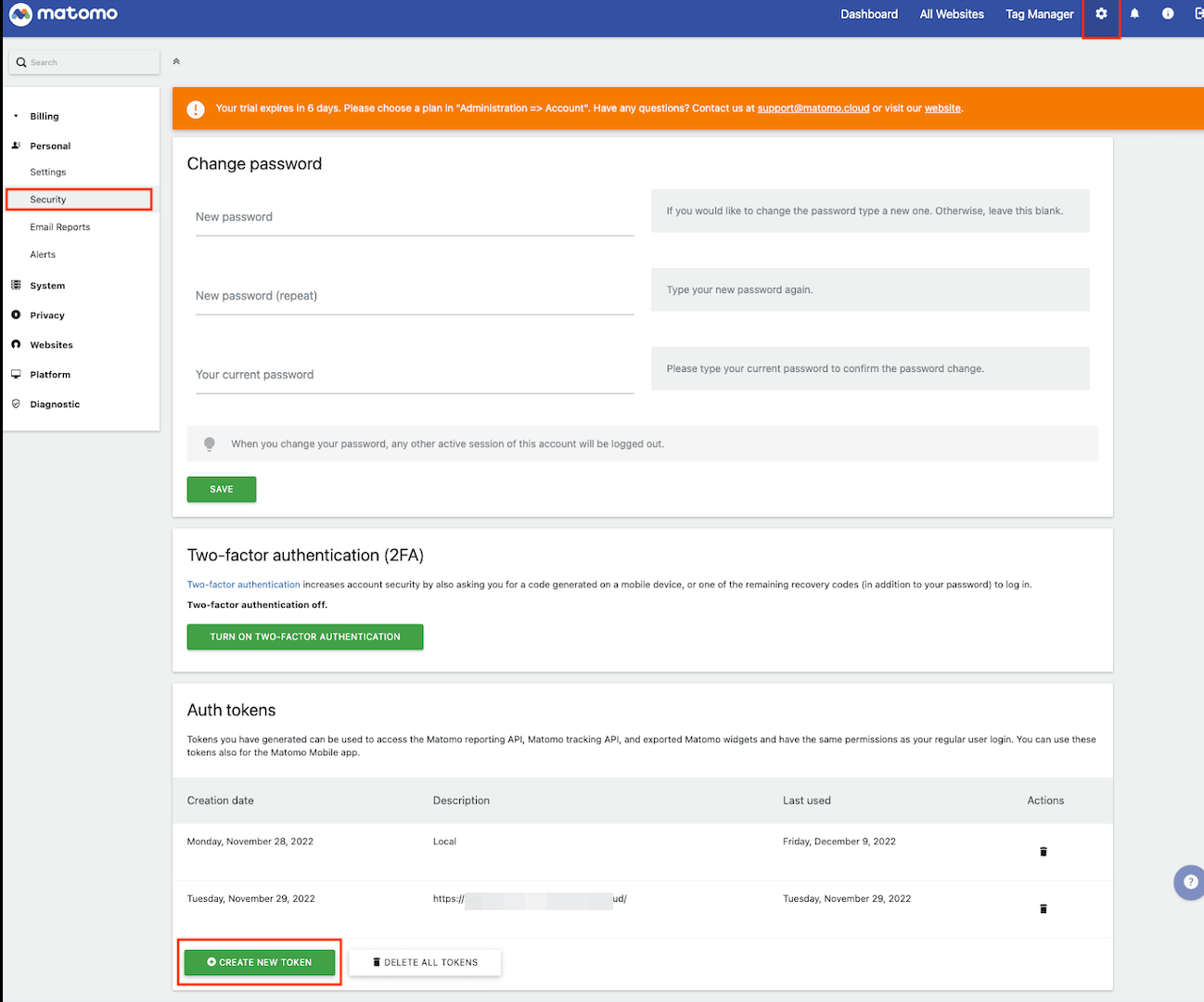
Auth Token can be generated from your Matomo Dashboard. For this, go to Administration -> Personal -> Security -> Auth tokens and click the CREATE NEW TOKEN button:
Filter Out Traffic
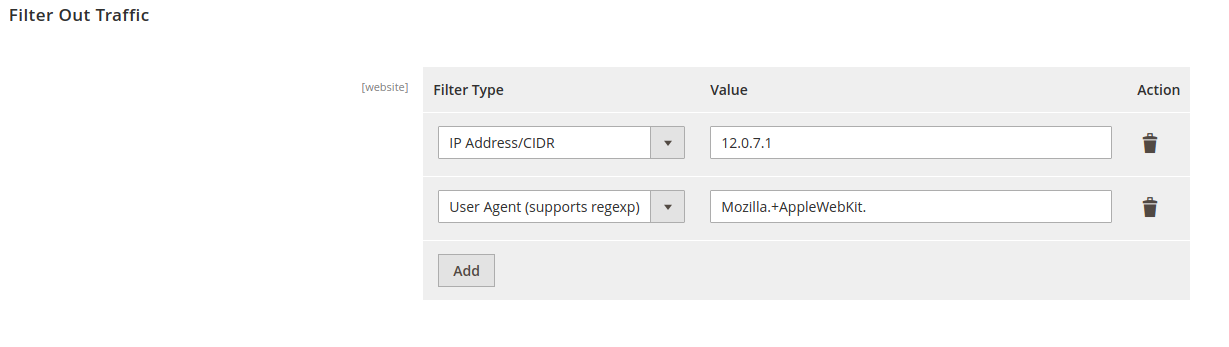
This feature filters out unwanted traffic so it can be ignored and nothing will be transmitted to GA4, Facebook, and Matomo integration if the request matches any of the defined filters.
There are 2 filter options:
- IP Address/CIDR
- User Agent (supports regexp)
How this works
In the above example, the request will be transmitted to the GA4, Facebook, and Matomo integration if it is coming from the mentioned IP address or defined browser user agent. So, if the request is coming from the Chrome browser, it won't transmit to the integration as it is not defined in the filter.
Events
-
Page/content view event. Page view events are triggered when page loads. This is achieved by javascript triggering an AJAX POST request on every page load. Ajax request triggers a ViewContent/PageView event by sending it to relevant platforms from the backend. Request always contains relevant context parameters (e.g. page title, URL, browser ID, etc). This method of tracking is compatible with full page cache.
-
E-commerce events - additional e-commerce related events are collected on server side. (See below)
-
Ad tracking – Meta and Matomo integration support ad campaign tracking by observing if URL at any point contains a campaign ID parameter (i.e. “fbclid”). If it does, then this is stored into session and included in every page view.
Supported Events
Meta Conversion API events
- ViewContent
- InitiateCheckout
- AddToCart
- CompleteRegistration
- AddPaymentInfo
- Purchase
- Search
- AddToWishlist
Google Analytics (GA4) events
- page_view
- add_to_cart
- begin_checkout
- sign_up
- add_payment_info
- purchase
- search
- add_to_wishlist
Matomo API events
- Page view
- Add to cart
- Update cart (update QTY)
- Remove from cart
- Purchase
Note
All event types are not impacted by cache, they are triggered by relevant backend logic (Observers or Plugins).
Event creation function
Now you can use the sendAnalyticsEvent function to trigger events and send the event details to GA4 and Matomo. You can use the function with button clicks, form submission, page load, and many other functions. You can add the function via code as well as using page builder (For ex: add script in page builder for button).
Usage Example
- Function on button click.
   document.getElementById('qabutton').addEventListener('click', function() {
        if (typeof sendAnalyticsEvent === 'function') {
            sendAnalyticsEvent('xyzbuttonclick_scope_event', {
                param2: {value: 'ABC123', dimensionId: 2}
            });
        }
    });
In the above script, below are the details that will be passed to the GA4 and Matomo:
- Event name = xyzbuttonclick_scope_event
- Event data = param2
- Event Parameter value = ABC123
-
dimensionId = This is optional and should be only entered when passing an alphanumeric value to Matomo Analytics
-
Function for form submission
 document.getElementById('myForm').addEventListener('submit', function(e) {
sendAnalyticsEvent('form-submit', { formId: 'myForm', formData: e.target });
});
In this example, the event handler for "submit" is added to the form by ID "myForm". When the form is submitted, the event "form-submit" is passed to the analytics with the data "formId: myForm" and formData.
Logging
The module has logging support for all requests that are being sent. For each integration, there is an option "Debug Logging" that allows you to enable/disable logging for individual integration.
Log location: var/log/analytics-stream.log.
THANK YOU FOR CHOOSING AITOC EXTENSIONS!