
On this page
Smart Slider
Description
Our module extends the default functionality of the Magento PageBuilder Slider component and provides additional configuration options for individual slides that allow you to restrict individual slide content to specific customer groups, as well as scheduling the start and end date of a slider’s visibility on your website.
This module works for sliders that have been created using a CMS page as well as a CMS Block.
This allows you:
-
to plan product launches or sales in advance and have content appear at the necessary time
-
to target content (for example, sales offers) to specific groups of customers.
Note
All Aitoc extensions can be customised to fit particular business needs. If you have questions about any customization, please drop us a message at [email protected]
Compatibility
Smart Slider module is compatible with the following Magento platforms:
| Community Edition (Open Source) | Enterprise Edition (Commerce) | Cloud Edition |
|---|---|---|
| 2.4.* | 2.4.* | 2.4.* |
Installation
Installing module using zip file
- Unzip and paste the extension file into your root Magento folder.
- Connect to your server by SSH.
- Go to your Magento root folder.
- To install the extension, perform this command:
php bin/magento setup:upgrade
php bin/magento setup:di:compile
php bin/magento setup:static-content:deploy
Composer installation
If you haven't installed any Aitoc module before, in that case first you will need to add your Aitoc composer repository. Please go through the document to see how you can add composer repository.
To install the module, you will need to run following commands:
composer require aitoc/smartslider
php bin/magento setup:upgrade
php bin/magento setup:di:compile
php bin/magento setup:static-content:deploy -f- To switch the extension on/off, perform these commands:
php bin/magento module:enable Aitoc_SmartSlider
php bin/magento module:disable Aitoc_SmartSlider- To update the module, use below command:
composer update aitoc/smartsliderPageBuilder Slider
The module extends the default functionality of the PageBuilder Slider component. In order to manage the visibility of the slides, one needs to create them beforehand.
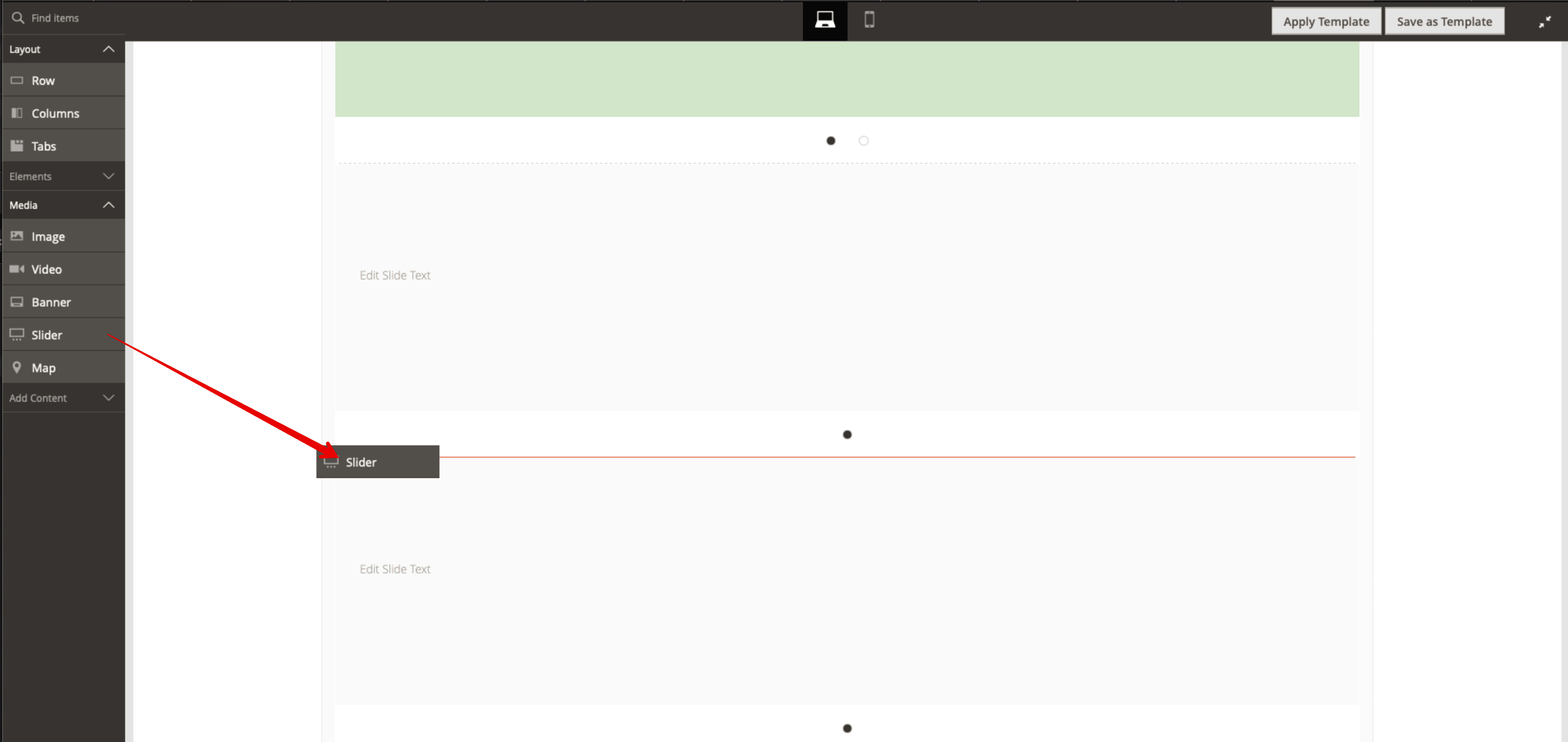
To do that, please go to any Page or Static Block where you want to create/edit the slider itself. To handle the slider functionality, please open the PageBuilder and drag the slider element inside the row where you wish to show it:
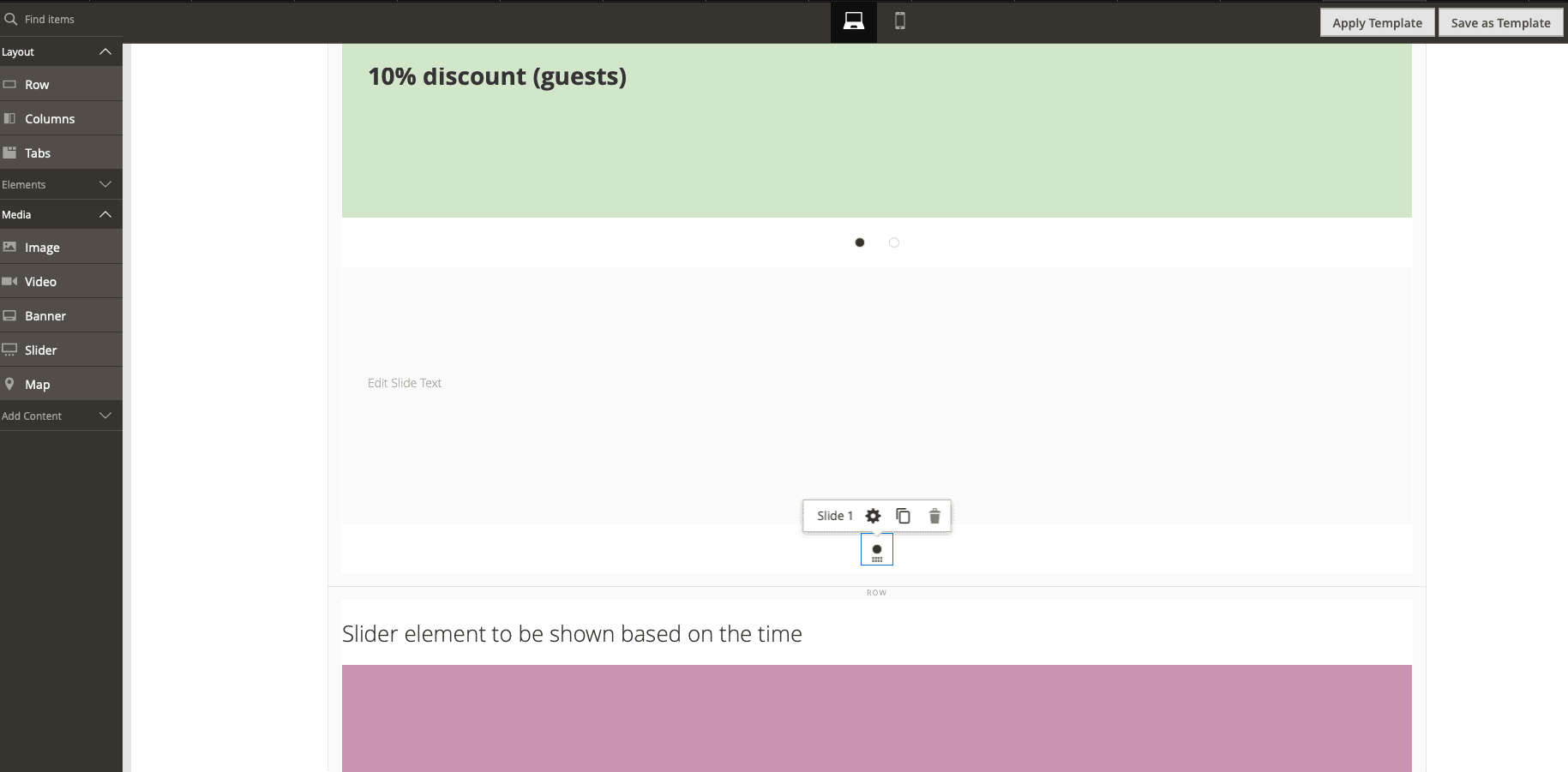
The first slider element will appear. To manage it, you need to click the black radio button and then click the Gear icon ⚙️:
This will open the configuration of your slide. In this configuration section, the Aitoc Smart Slider module provides additional features.
Visibility Rules
The block that AITOC Smart Slider adds is the Visibility Rules
From here, you can restrict people from seeing some slides based on their customer group and/or a specific period of time.
Customer Group Restrictions
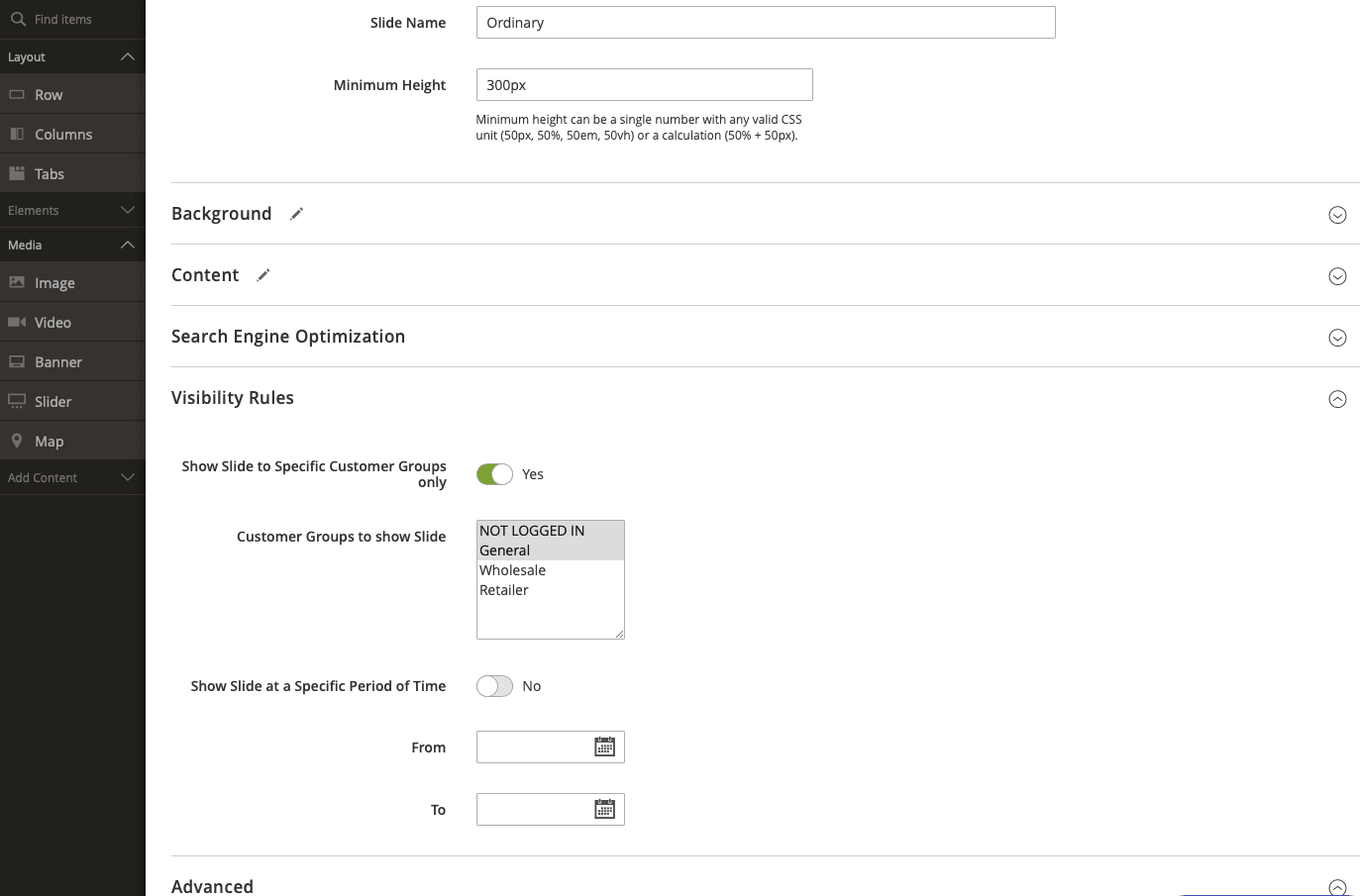
To restrict the display of the individual slide for a specific customer group you need to enable the Show Slide to Specific Customer Groups only toggle.
When the previous option is enabled, the slide will only appear for the selected customer group. For the customer groups which are not chosen, this slide won’t appear.
For instance, you want to show a 10% discount for guests and General customers. You also have a special promotion for Wholesale customers which gives a 20% discount. You do not want to confuse anyone and you wish the General customers and guests to see the slider with a 10% discount only and the wholesale customers to see the bigger 20% discount.
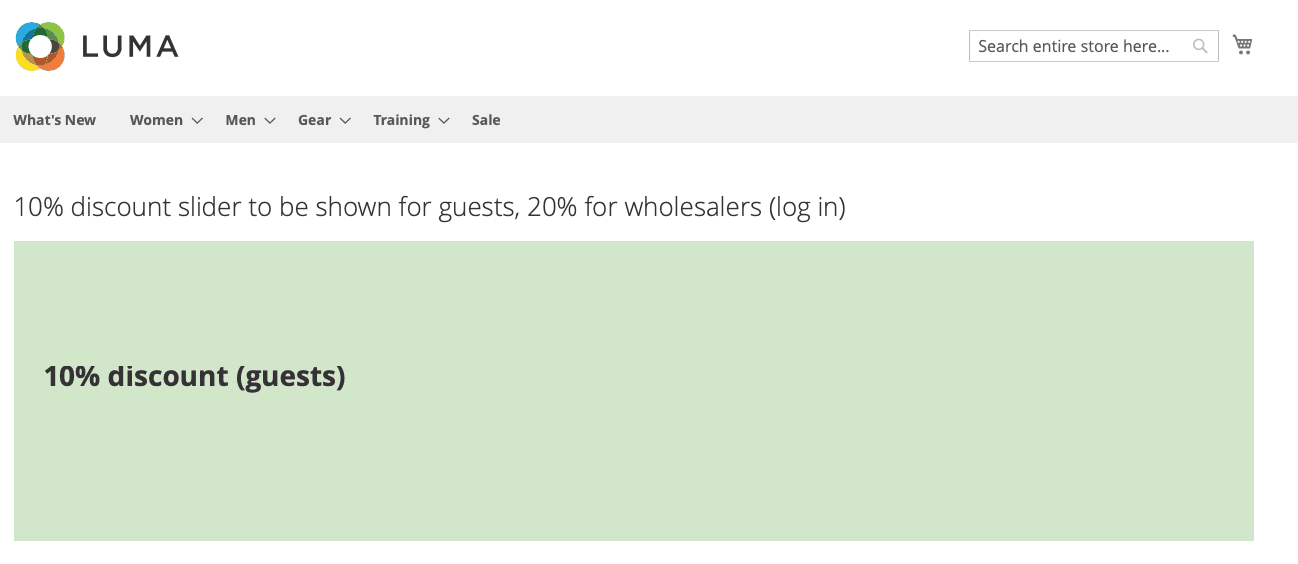
Slide 1 with 10% discount for Guests/General Customers
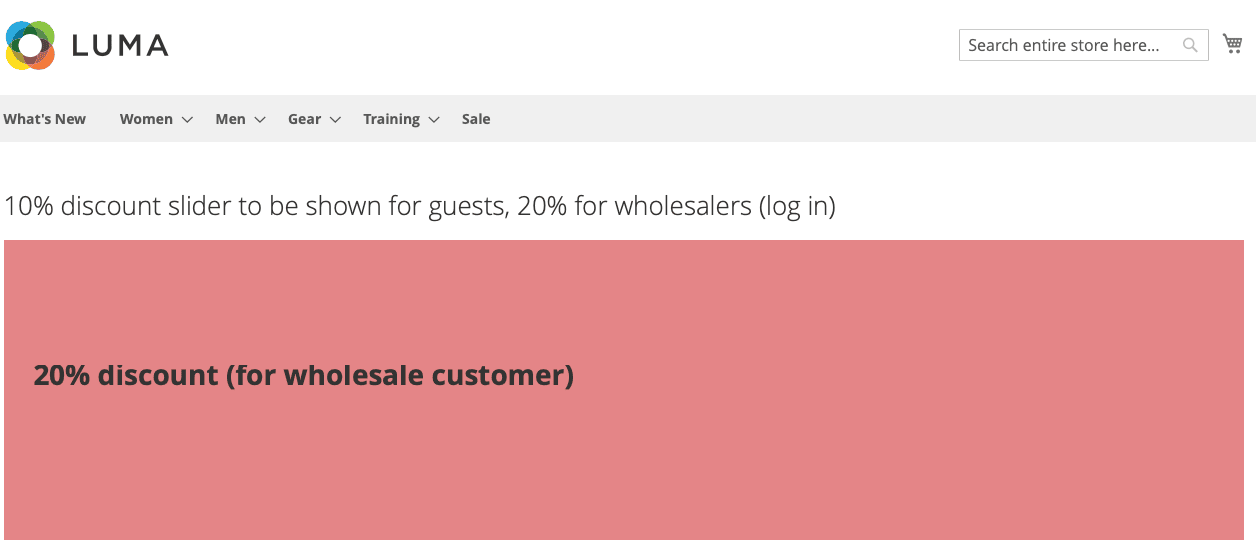
Slide 2 with 20% discount for Wholesale Customers
Note
The Wholesale customers shouldn't see the 10% discount to avoid confusion.
So for the first slide (with 10% discount for Guest/General customers) you should use these settings:
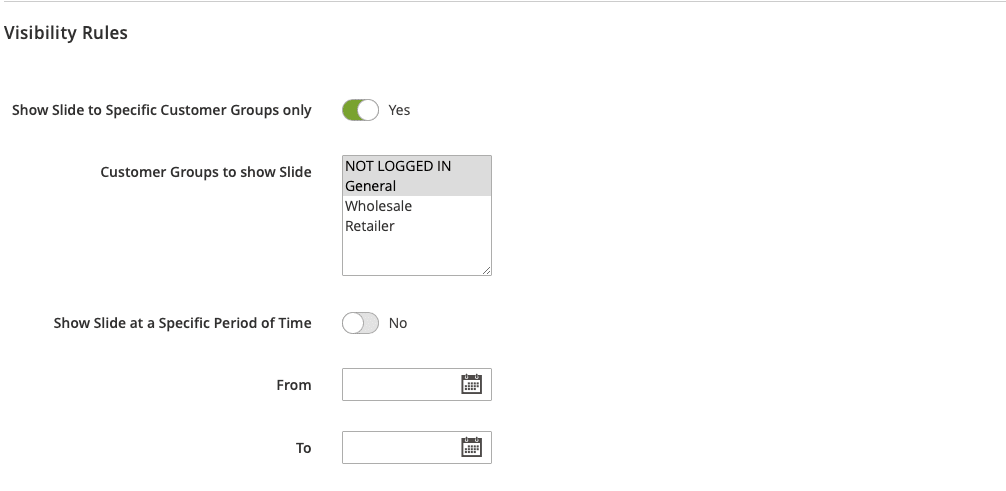
You show this block for Guests and General customers only. The Wholesale customers won't see it.
For the second slide (with 20% discount for Wholesale customers) you should use these:
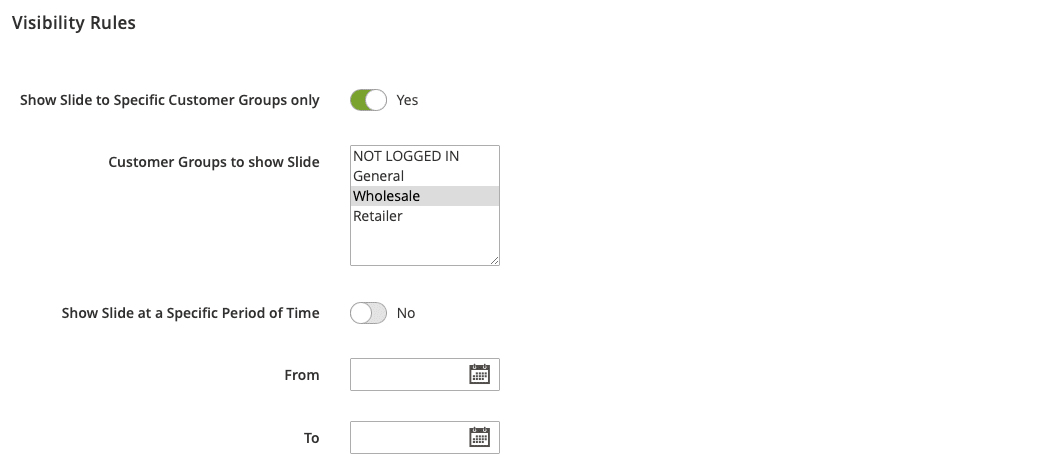
This block therefore will be displayed for this specific customer group only.
Time Period Restrictions
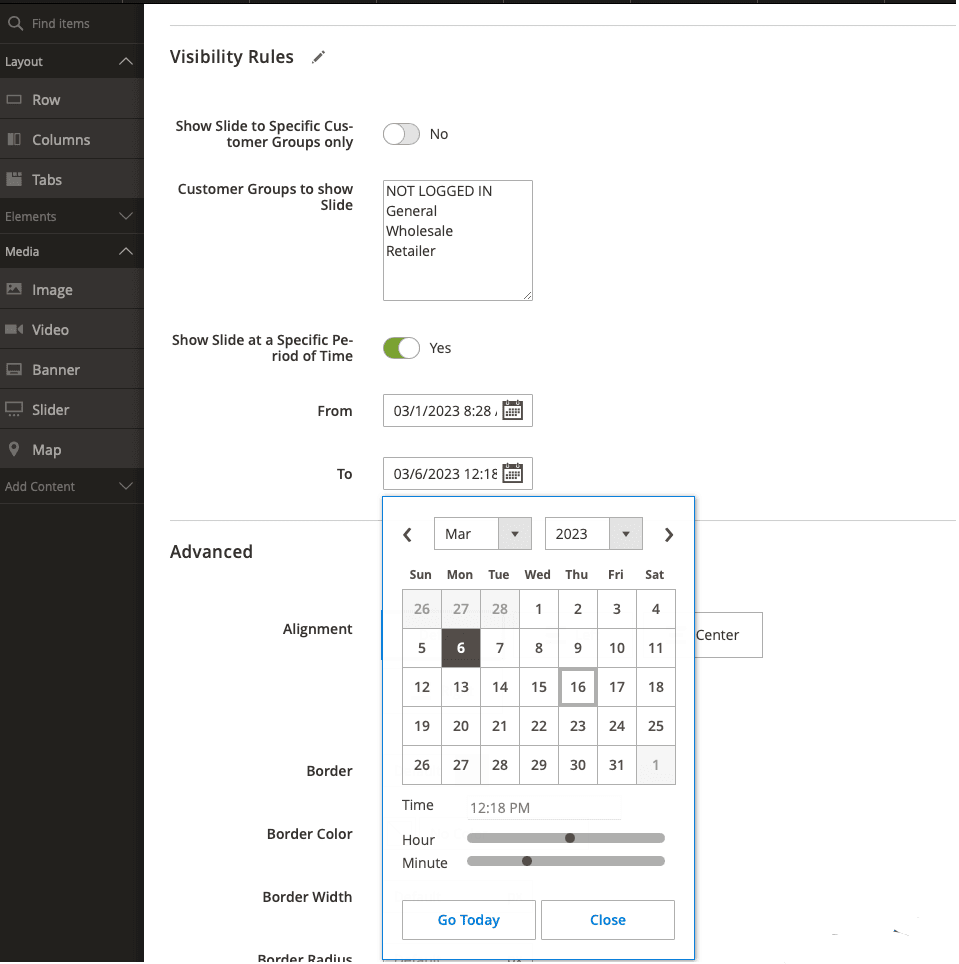
To restrict the display of the individual slide for a specific time period you need to enable the Show Slide at a Specific Period of Time toggle.
If enabled, below you can pick the date when you wish to show or hide this specific slide. Note that you can not only select a date, but also a time. This allows slides to be scheduled to start and stop very accurately, down to a minute’s precision.
To put the current server date and time, click the Go Today button.
Note
You don't have to select start and end dates.
-
If you choose no start date, then it just starts immediately but ends when defined.
-
If there is no end date, then it will start at the defined time but will continue forever - unless it's reconfigured.
Let's imagine you wish to create the Winter Sale Promotion. You already have marketing materials and you have spare time now to create the slides (not to do it in a rush), but you do not wish to ruin the surprise for your customers.
So once you upload the slides, you should do these changes:
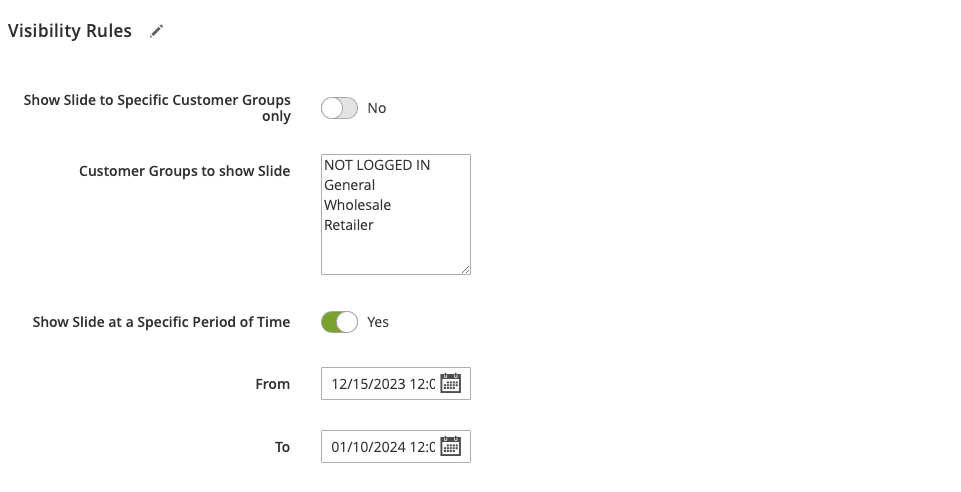
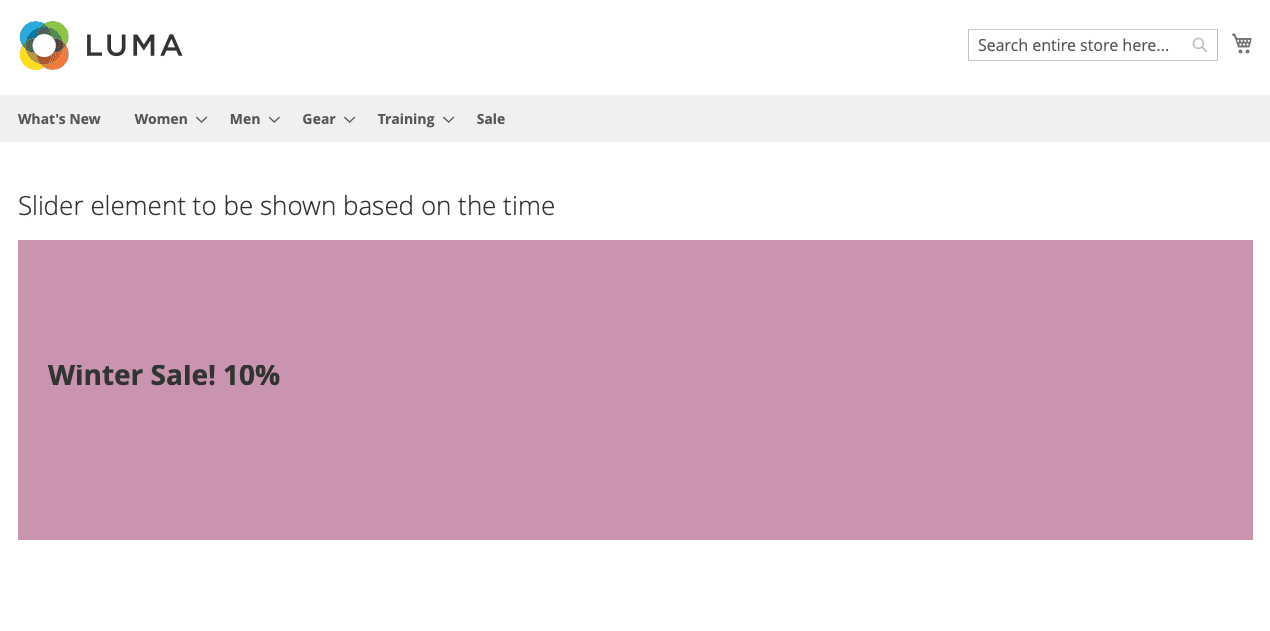
This slide will be hidden until New Year Sales. Then starting from Dec 15th the customers will see this slide:
Conditions Combination
You may use both customer groups and time restrictions at the same time. For instance, you wish to show a bigger discount on the Winter Sale from the previous example for the Wholesale Customers:
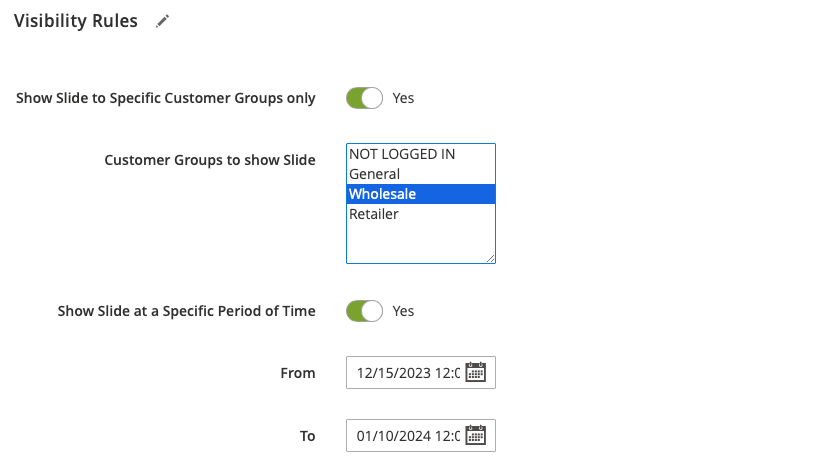
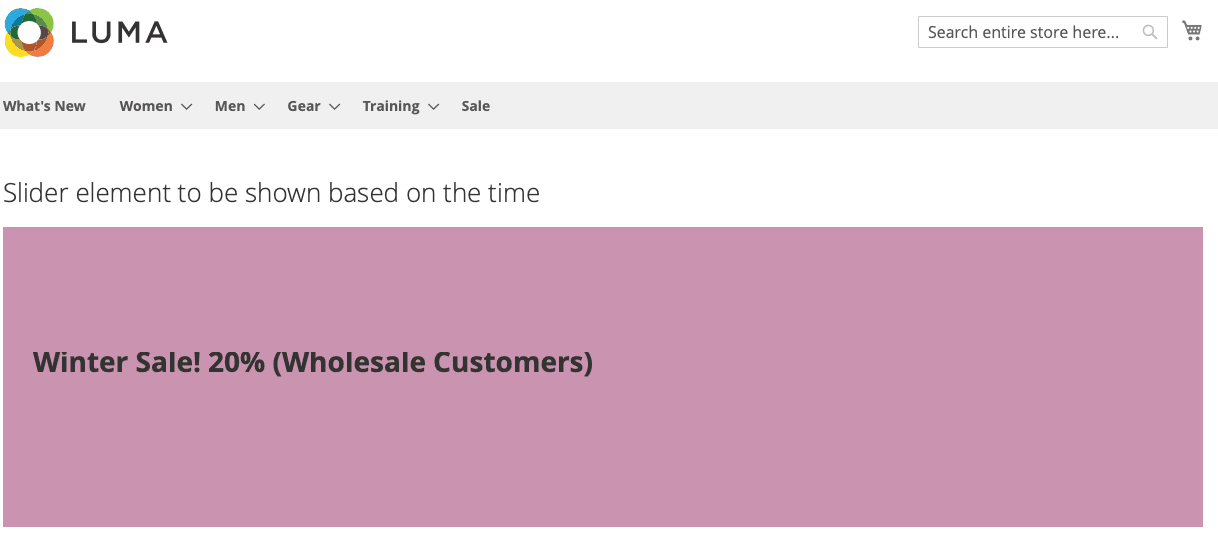
This block will be hidden for Guests/General customers forever and the Wholesale Customers will see it during the Winter Sale rush only:
Note
If you have only one slide and it is restricted to view based on the customer group and/or time period, the whole slider won't be rendered.
Cron Functionality
The module contains cron functionality that runs every 1 minute. The cron determines if there is a slider on any page or block that includes the scheduled date and time and checks if any slides need to start/stop. Also, cron invalidates the caches for these CMS pages.
Cron always ensures that slide images update on the correct date and time.
THANK YOU FOR CHOOSING AITOC EXTENSIONS!