
On this page
Two-Factor Authentication
Description
The Two-Factor Authentication module for Magento 2 provides an extra layer of security to protect your store against unauthorized admin access. The modules allow you to control access to the admin panel by adding additional security that involves each time an admin user logs into their account.
Compatibility
The Two-Factor Authentication module is compatible with the following Magento platforms:
| Community Edition (Open Source) | Enterprise Edition (Commerce) | Cloud Edition |
|---|---|---|
| 2.3.0 - 2.4.* | 2.3.0 - 2.4.* | 2.3.0 - 2.4.* |
Installation
Installing module using zip file
- Unzip and paste the extension file into your root Magento folder.
- Connect to your server by SSH.
- Go to your Magento root folder.
- To install the extension, perform this command:
php bin/magento setup:upgrade
php bin/magento setup:di:compile
php bin/magento setup:static-content:deploy
Note
If you are installing the module using the zip method, please make sure to install the chillerlan/php-qrcode module using the command composer require chillerlan/php-qrcode.
Composer installation
If you haven't installed any Aitoc module before, in that case, first, you will need to add your Aitoc composer repository. Please review the document to see how you can add the composer repository.
To install the module, you will need to run the following commands:
composer require aitoc/2_factor_auth
php bin/magento setup:upgrade
php bin/magento setup:di:compile
php bin/magento setup:static-content:deploy -f- To switch the extension on/off, perform these commands:
php bin/magento module:enable Aitoc_TwoFactorAuthentication
php bin/magento module:disable Aitoc_TwoFactorAuthentication
Setup Authentication for the admin user
You can use the module to set up different authentication methods for each admin user. To set up authentication, navigate to Admin > System > Permissions > All Users. Then select the admin user for whom you want to set up authentication.
In the admin user detail page, you will see two new tabs, "TFA Setting" and "IP Restriction."
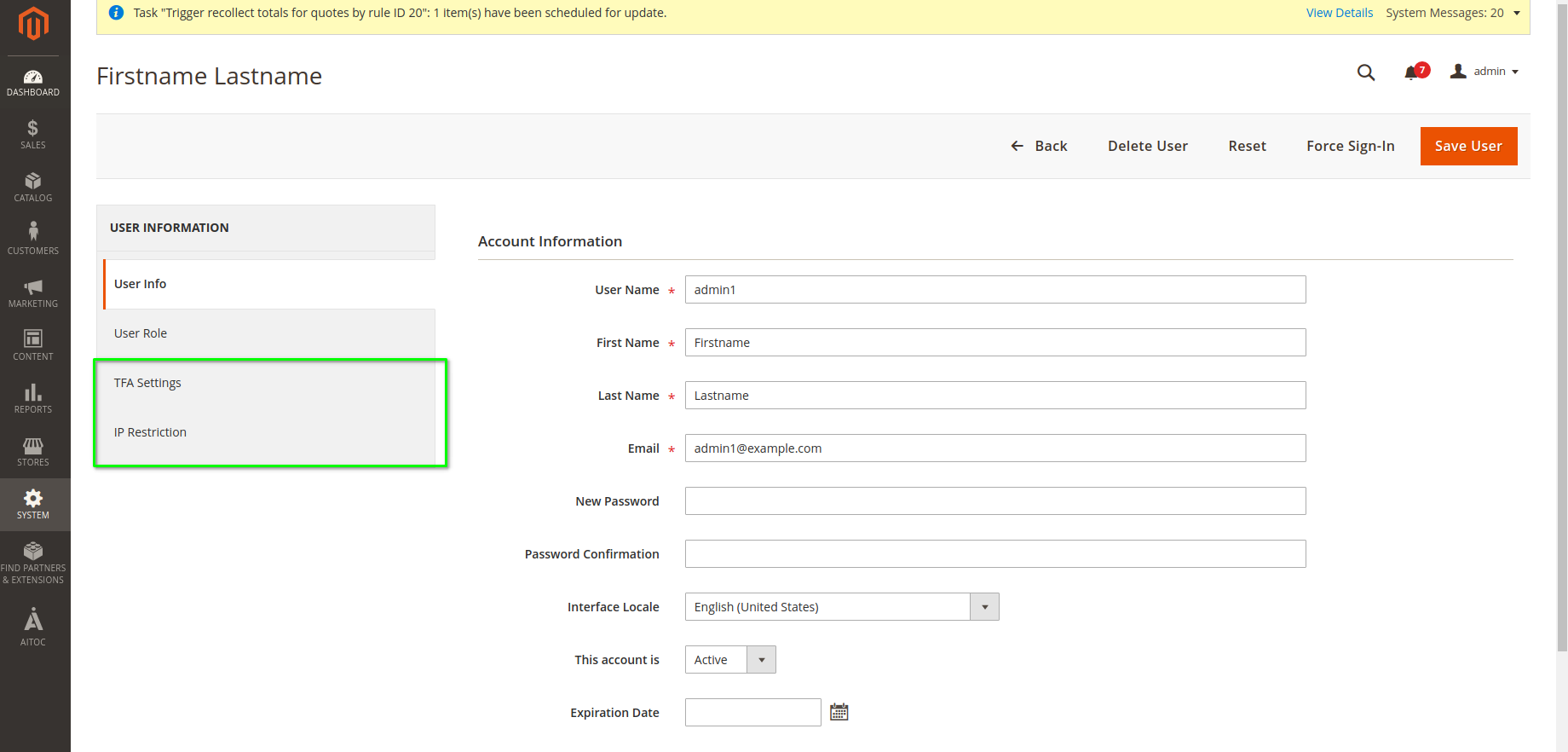
TFA Setting
From this tab, you can enable the preferable authentication verification method.
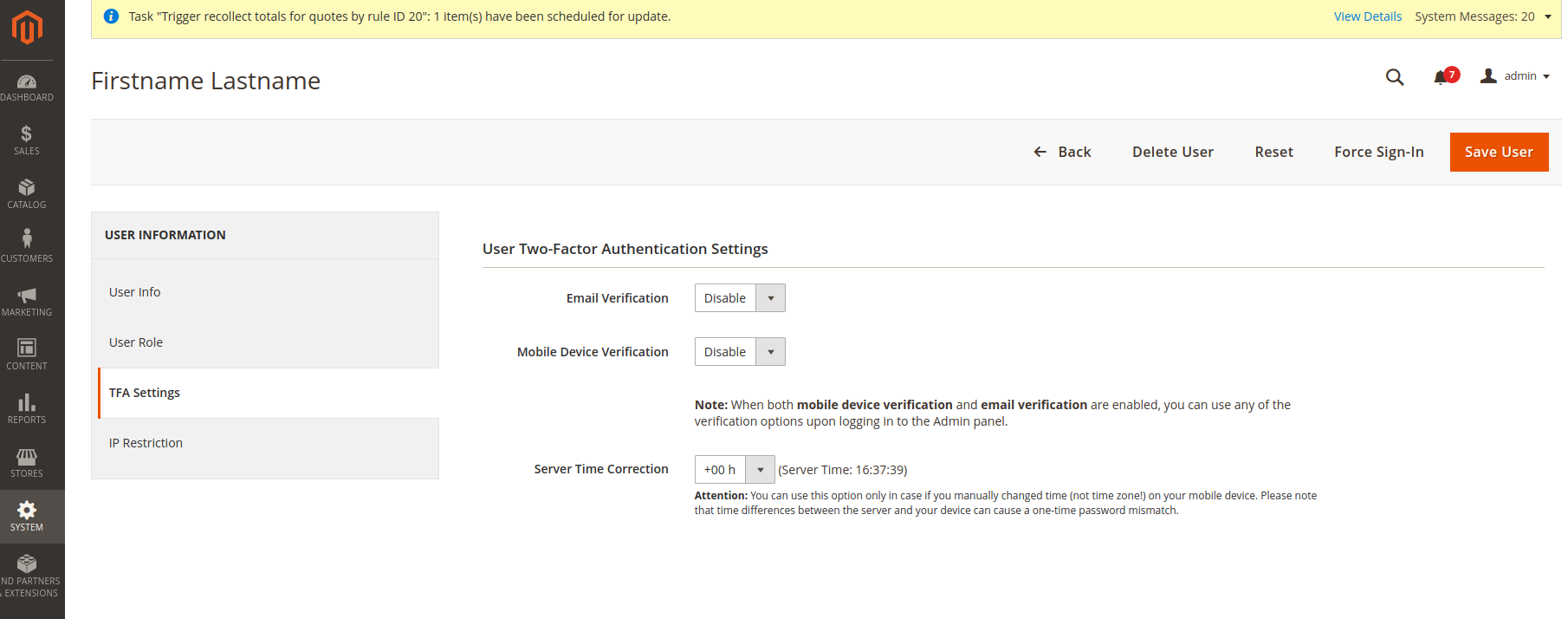
Email Verification = If this is enabled, when the user tries to login into the admin, they will get an authentication code in the email address associated with their account.
Mobile Device Verification = If this is enabled, the user will need to enter the authentication code they will get on their mobile devices.
Server Time Correction = Change the default field value if custom time (not the time zone!) is manually set on your mobile device. The time difference between your device and the server may cause a one-time password mismatch. Otherwise, leave this field unchanged.
Setup Authentication on a mobile device
When you enable the Mobile device Verification method, you will see two new fields Secret Key and Password Verification. You will see a code and QR Code for the Secret Key field.
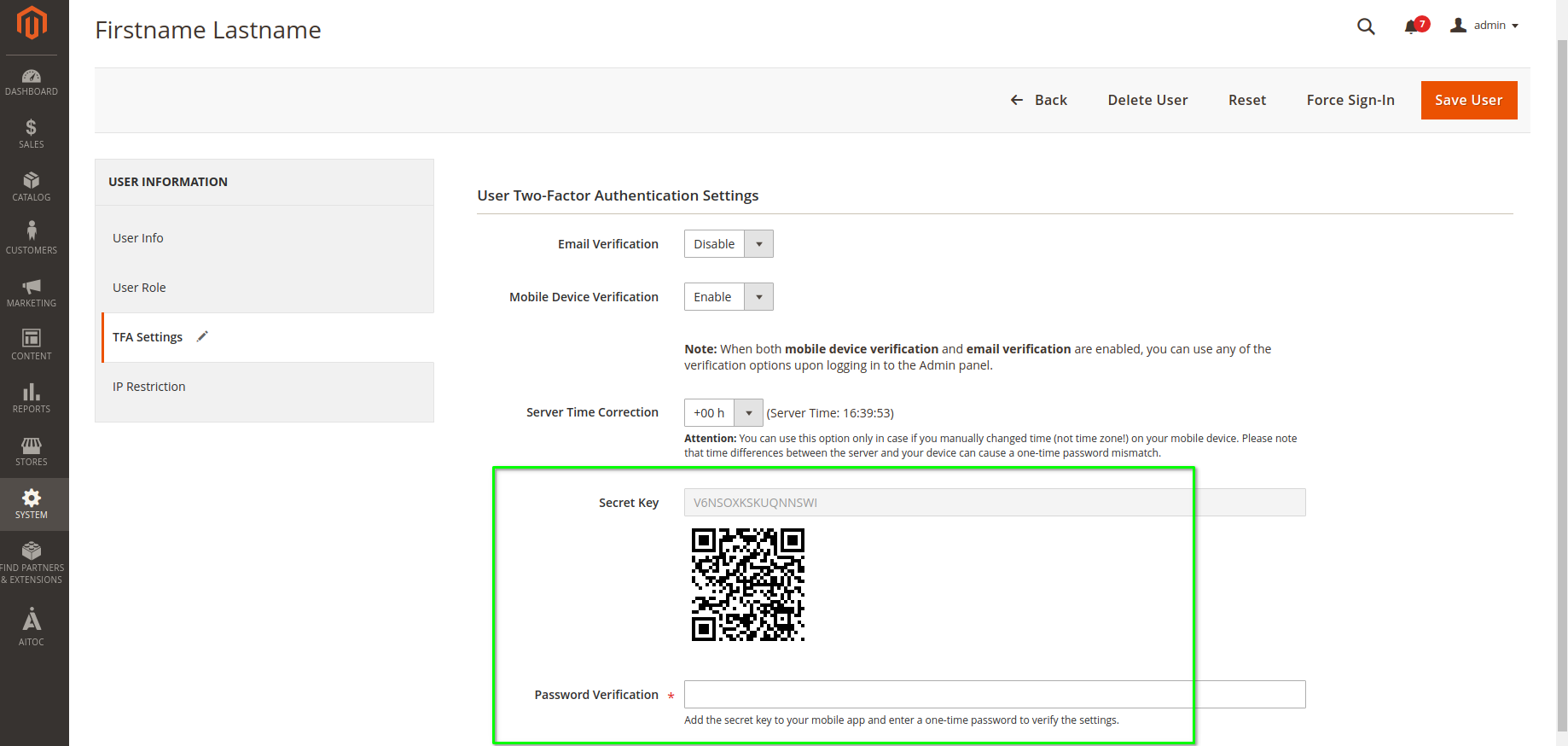
The "Google Authenticator" app is suggested on the user's device. With the Google Authenticator, users link their mobile devices to specific Magento admin accounts by entering a secret key or scanning a QR code.
Enter a one-time password from the linked mobile device into the "Password Verification" field to complete the verification and save the user.
Note
You can enable both verification methods at the same time. However, we suggest that admin users use only one verification method when accessing admin.
IP Restriction
The module allows you to restrict access to the admin panel by creating a list of trusted IP addresses. The module also shows your current IP address.
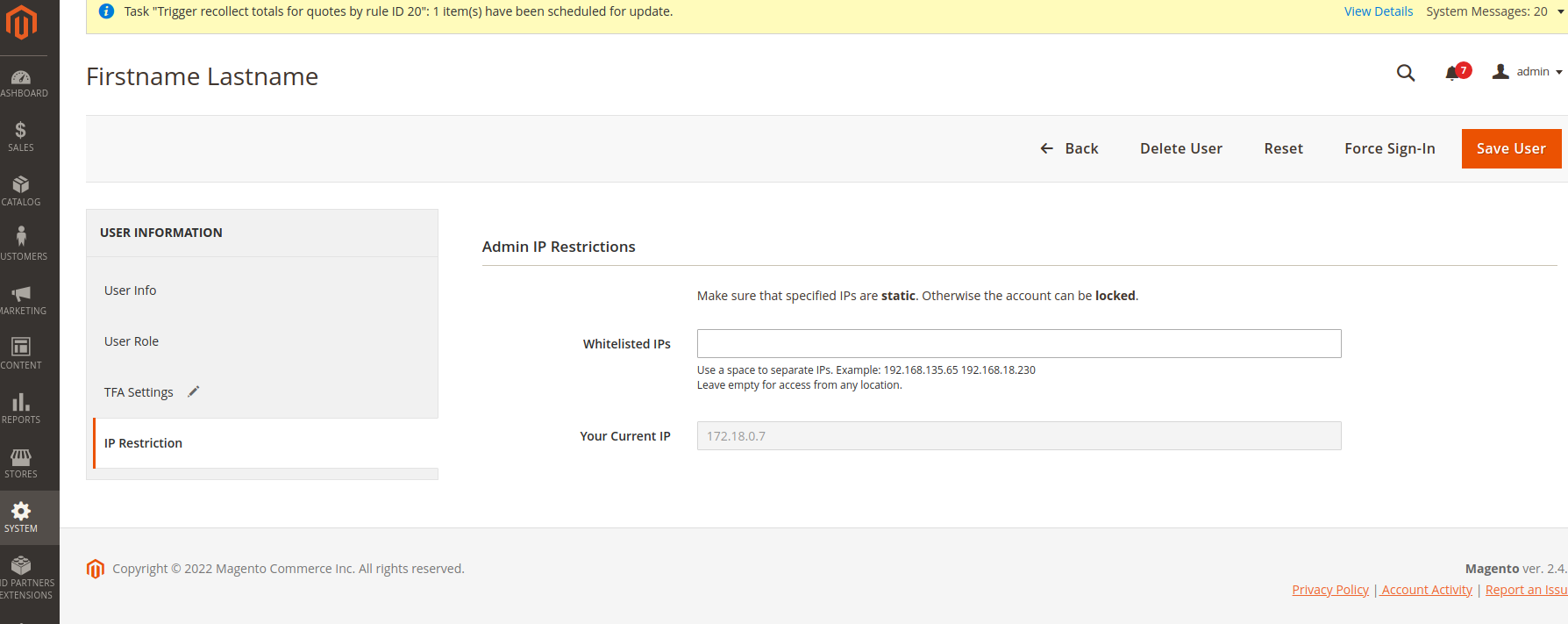
On the "Whitelisted IPs" field, Add authorized IP addresses to the whitelist to secure the Admin account. Separate IPs with a space.
THANK YOU FOR CHOOSING AITOC EXTENSIONS!